FAQ
15Find answers to the most common questions about our services.
Why is there a child theme included in the package?
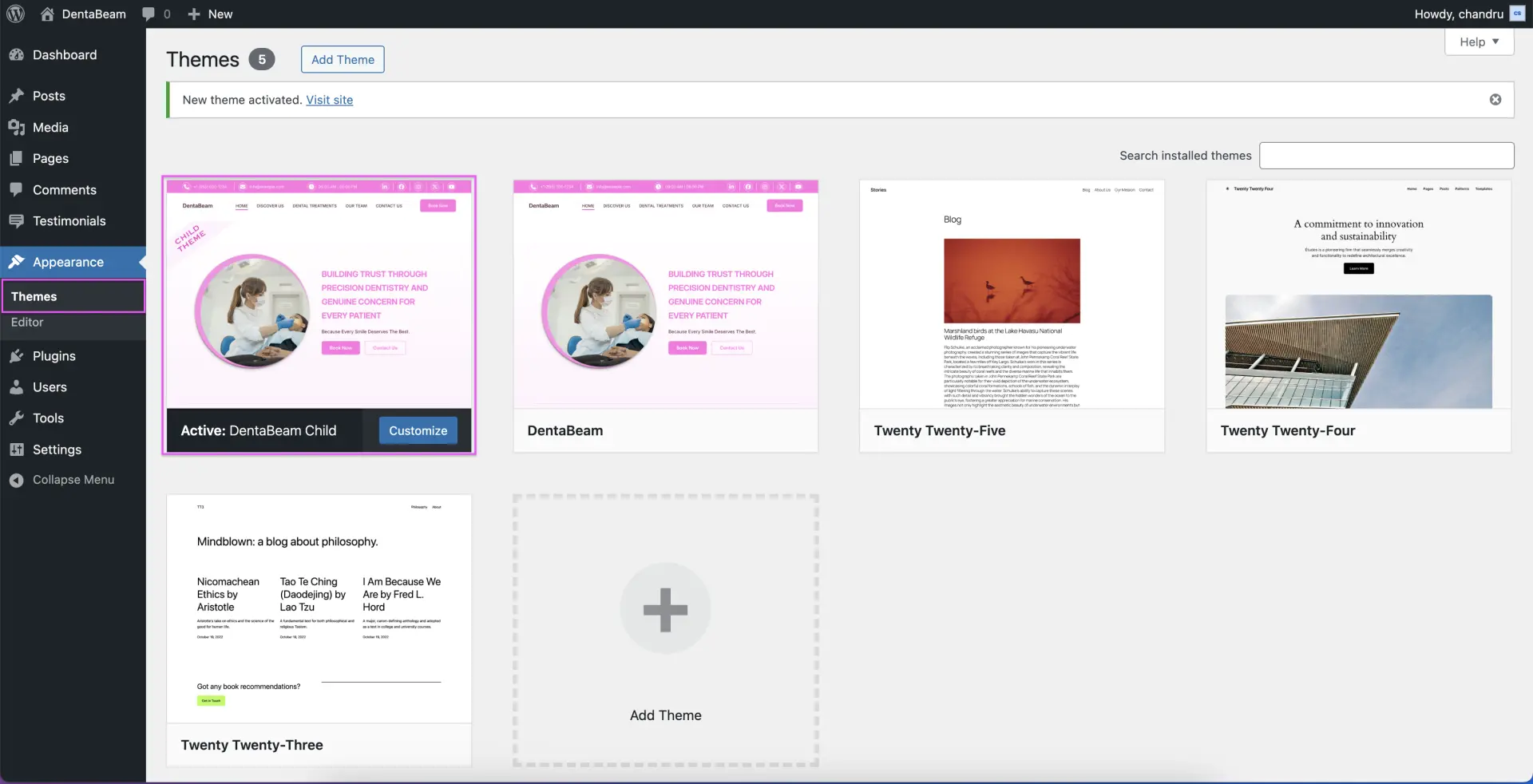
The child theme is provided as a safe environment for your custom development. By activating the child theme instead of the main parent theme, you can modify styles and functions while maintaining a clean upgrade path. We suggest all users activate the child theme from the start to future-proof their website against updates. Please note that for the child theme to function correctly, the parent theme must remain installed in your themes folder at all times.
What should I do after activating the theme and plugins?
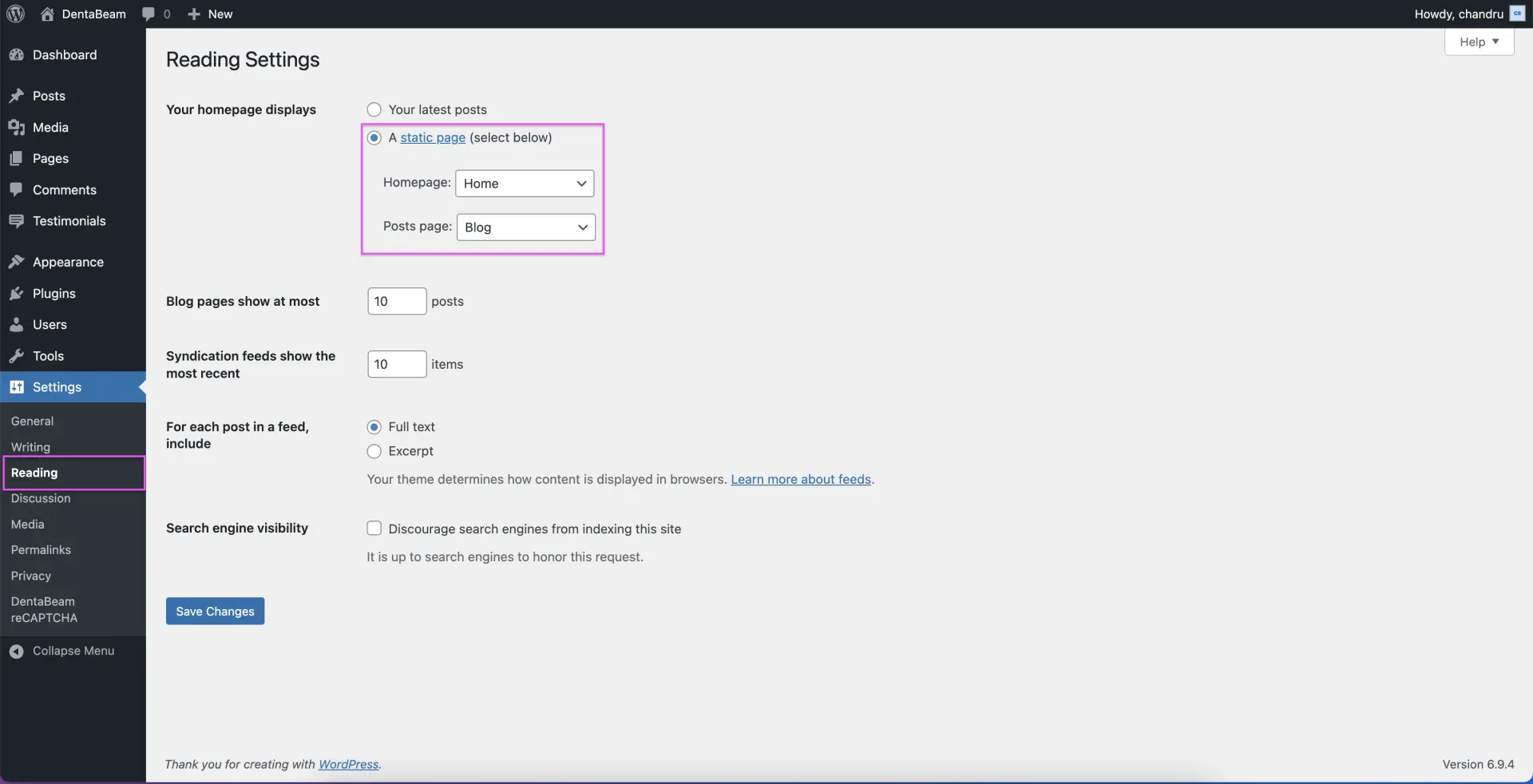
Once the DentaBeam theme and core plugins are active, you should configure your site's foundation by setting up your primary pages. Start by creating two new pages: one titled "Home" and another titled "Blog." Next, navigate to Settings → Reading in your WordPress dashboard. Under the "Your homepage displays" section, select "A static page" and assign your Home page as the "Homepage" and your Blog page as the "Posts page." After clicking Save Changes, you can begin customizing your homepage by inserting our pre-designed Block Patterns or individual blocks to build your dental practice layout.
Why am I not receiving emails in my inbox?
First, ensure that the DentaBeam core plugin is activated, as it handles the form functionality. Next, we highly recommend configuring SMTP for your website using a plugin such as FluentSMTP or WP Mail SMTP. Without a proper SMTP configuration, emails sent from your server are often flagged as spam or blocked entirely. Setting up SMTP ensures that your appointment notifications and form submissions reliably reach your inbox.
How to change Favicon?
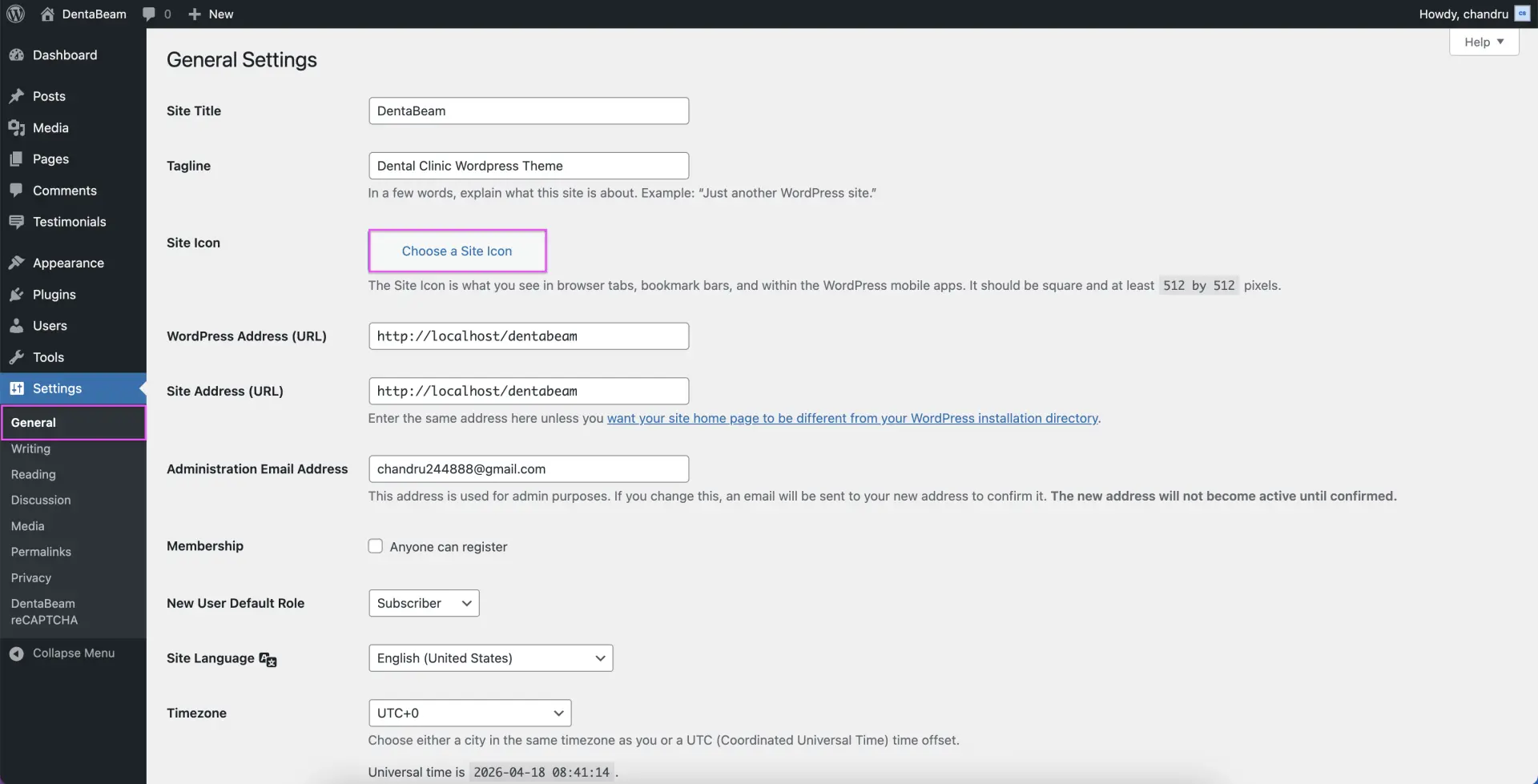
Navigate to Settings from the Admin Dashboard → Settings → General.
How do I hide the WordPress Admin Bar?
To hide the WordPress admin bar while viewing the front end of your site, navigate to Users → Profile from your dashboard. Locate the Toolbar setting and uncheck the box labeled "Show Toolbar when viewing site," then scroll to the bottom of the page and click Update Profile to save your changes.

